

1
Connect the tools for your first job
In the Lindy web app, open Integrations and connect the tools Lindy needs. For a client update based on a spreadsheet, start with Google Sheets. Browse integrations to find the tools for your job.
2
Give Lindy the job
Open Home. Pick a suggestion or describe what you want back. For example, ask:
Use the Client Results spreadsheet to draft this week’s update for Acme. Include what changed, what shipped, and what’s next. Leave the draft here for me to review.Replace the spreadsheet and client names with your own. For more prompts, see Use cases.
3
Review the result
Check the draft and ask for any changes in the same conversation. If you’ll need the same update next week, ask Lindy to set up a routine.
More ways to use Lindy
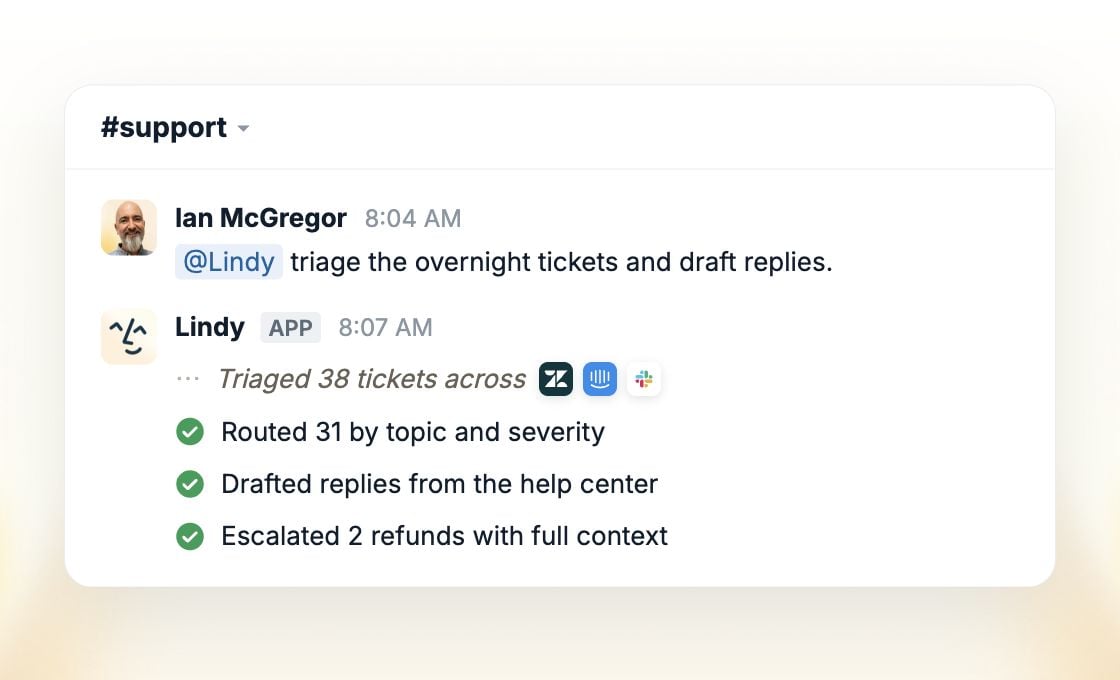
- Work with your team in Slack. An admin can add Lindy to Slack. Once your account is linked, @mention Lindy in a channel to work together or DM it for your own work.
- Text Lindy from your phone. Set up iMessage or SMS.
- Use email and calendar. Connect your Google or Microsoft account for inbox help, meeting prep, and scheduling.
Next steps
Set up Lindy
The full team and account setup
Home
Where you talk to Lindy and see what it’s done
Meetings
Recording, notes, and your shared library
Pricing
Seats, credits, and the shared pool