

Save an API key or token
1
Open Add credential
On Integrations, select API. You can also open Settings → Credentials to manage saved credentials.
2
Enter the key
Give it a Display name and paste it into API key or token. Use a key with the permissions Lindy needs for the job.
3
Save
Check Who can use it?, then select Add credential. Eligible agents can read the key during a task and send it to an API host.
SCREAMING_SNAKE_CASE:
Save a website login
Where Browser is available on Integrations, select it to open Add login credential. Enter a display name, website, username or email, and password. Check Who can use it?, then select Add credential. Lindy’s browser uses the login when a task opens the site. Lindy’s AI does not see the password.Reading the list
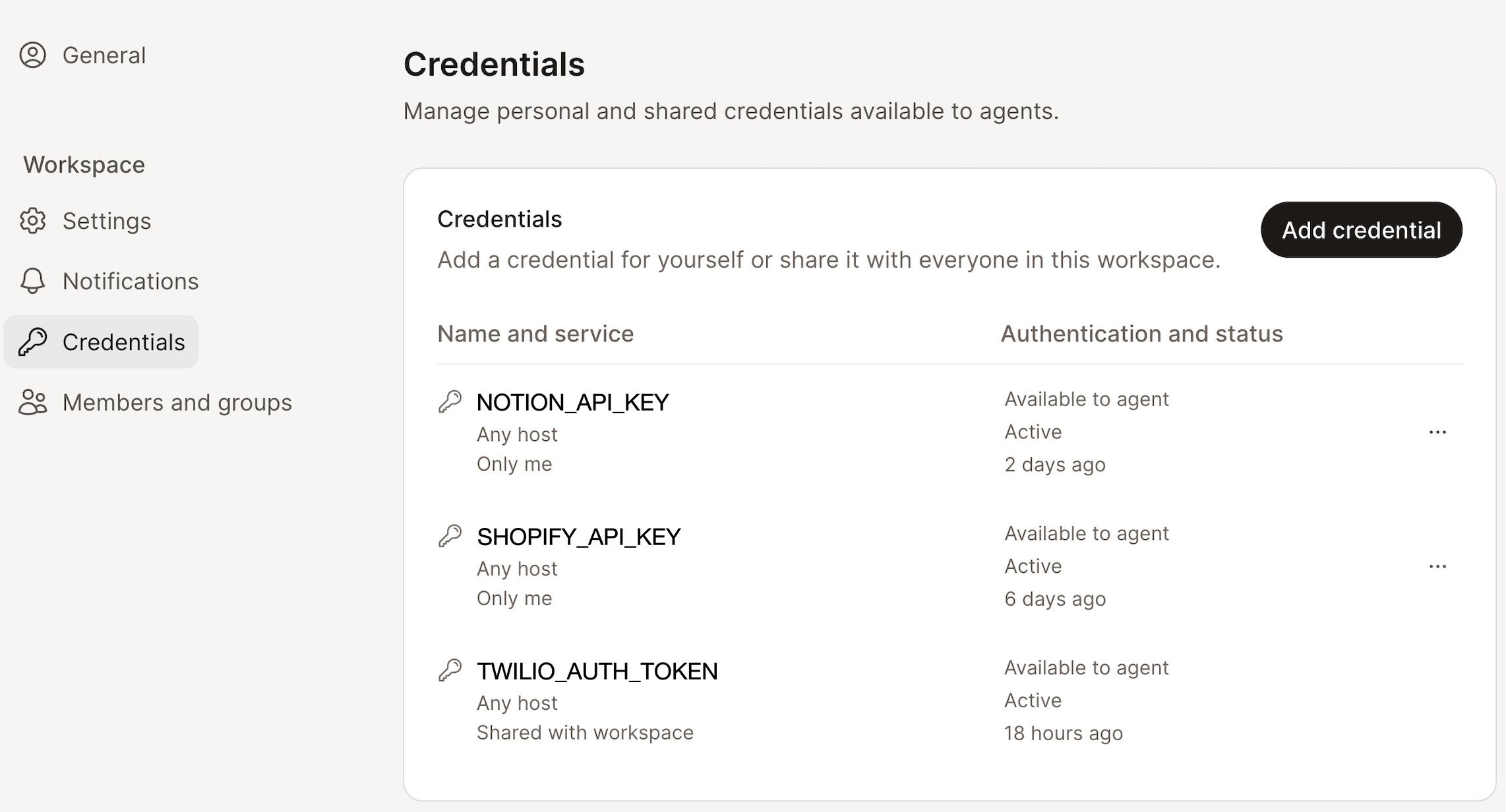
Each row tells you two things: what the credential is, and whether it’s working.
A rotated credential is easy to spot: its updated time moves, its name doesn’t.
Rotating and sharing
Open the … menu on any credential row.
What Lindy shows you, and what it doesn’t
The credential settings show its name, who can use it, and when it was last updated. The saved value is hidden after you add it. Eligible agents can still use a saved API key for their work.Credentials and integrations
Credentials and integrations solve the same problem from different ends.
If the tool you want is already in the integrations list, connect it there. Reach for a credential when the thing you’re calling has no integration of its own.