

Credit Usage by Feature
These are published estimates. The model, how much context Lindy reads, the length of the output, and extra model or tool calls all affect the actual charge. A connected-app lookup with a zero tool charge can use credits when the model reads or summarizes the result.
Routines can spend credits each time they run. Meeting recording and phone calls have separate charging rules.
How the shared pool works
Paid seats add credits to one workspace pool. Requests in channels and DMs, along with automated work, draw from it. Usage usually counts toward the person who makes the request, including their follow-up in a shared thread. Sponsored group work can count toward the sponsor. A personal cap limits how much one person can draw.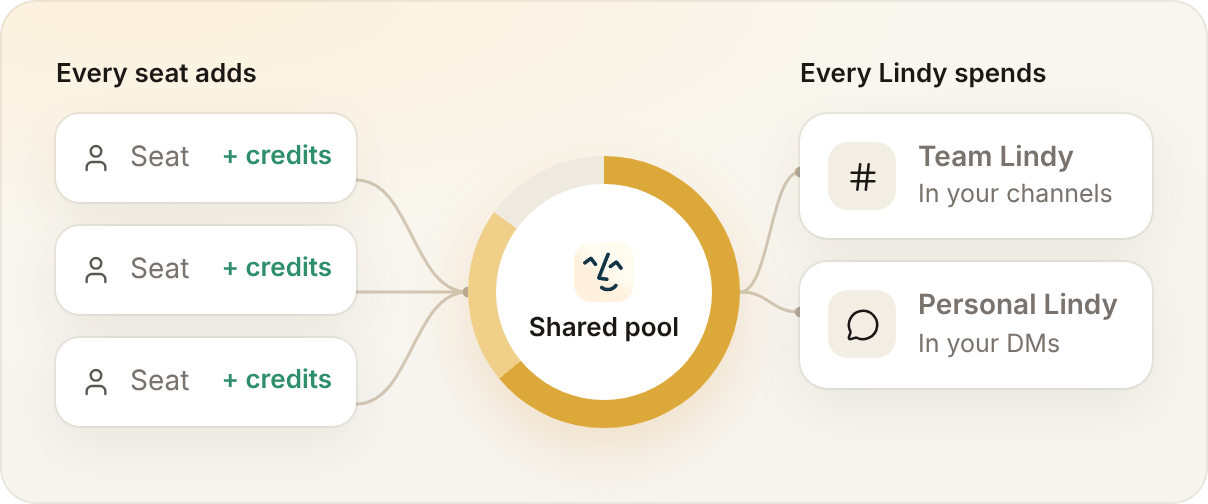
Your team’s Lindy, in your channels
Your whole team can ask Lindy to work with approved team sources. The table shows typical credit impact by task.Your personal Lindy, in your DMs
Personal Lindy handles private requests and automatic updates such as daily briefs and meeting prep.
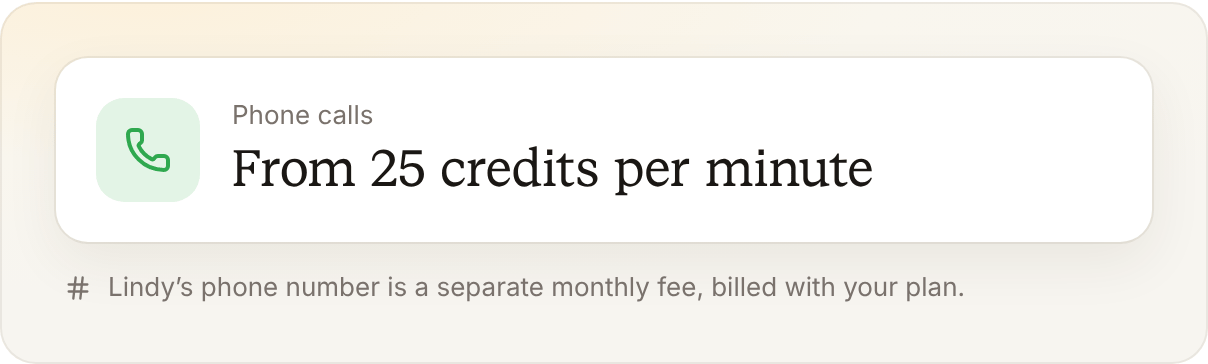
A purchased Lindy phone number has a separate monthly fee, billed with your plan.
Checking your usage
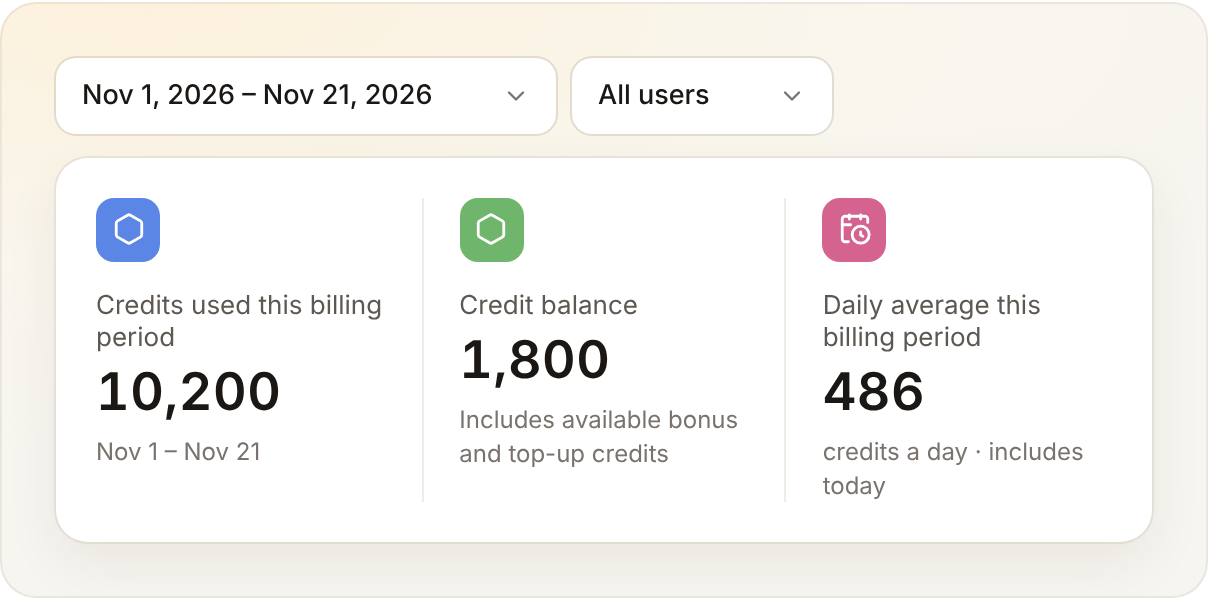
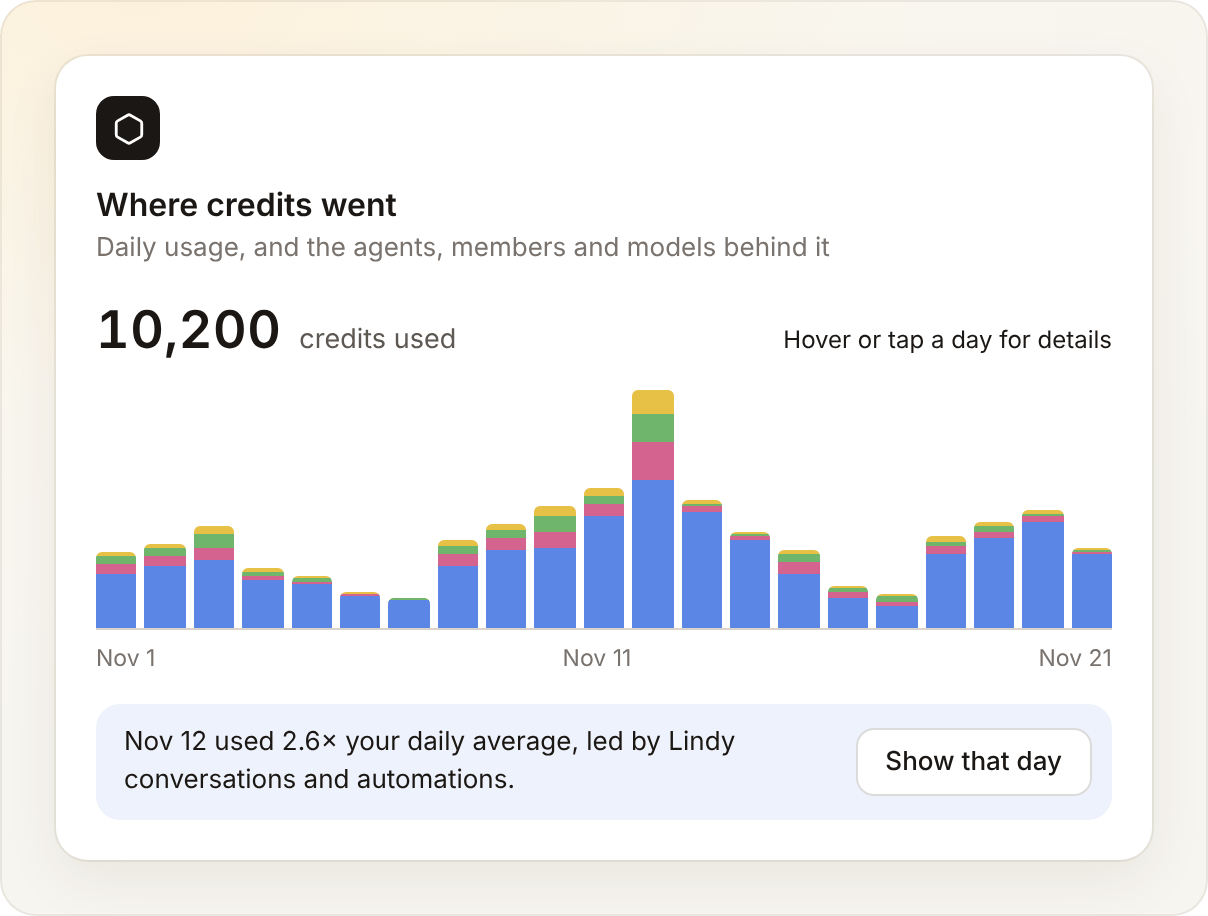
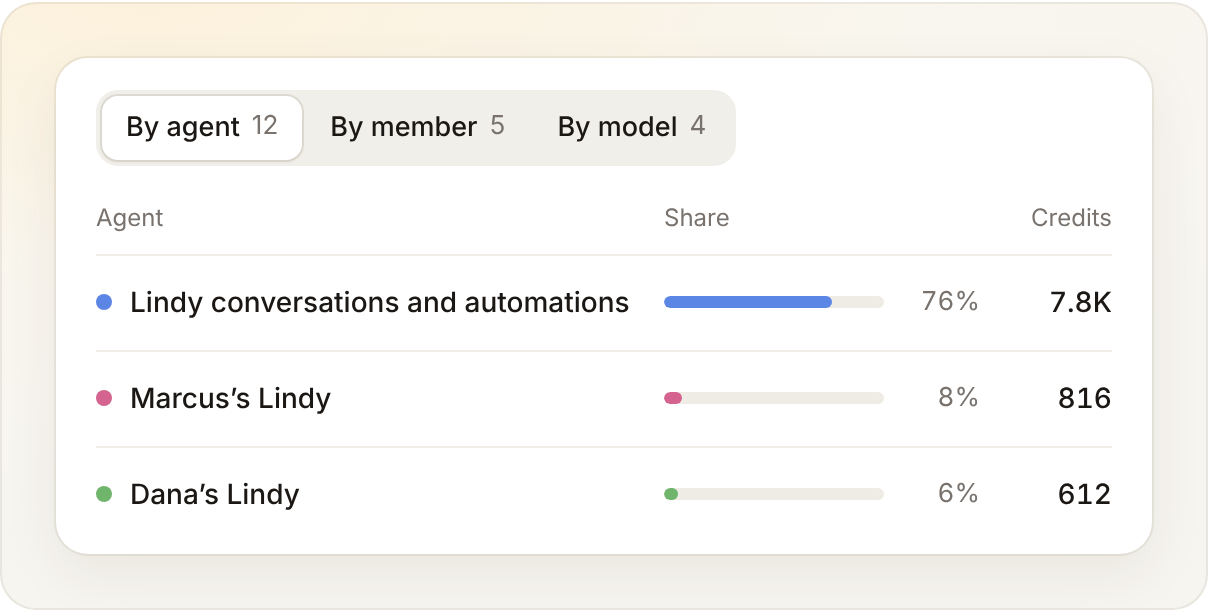
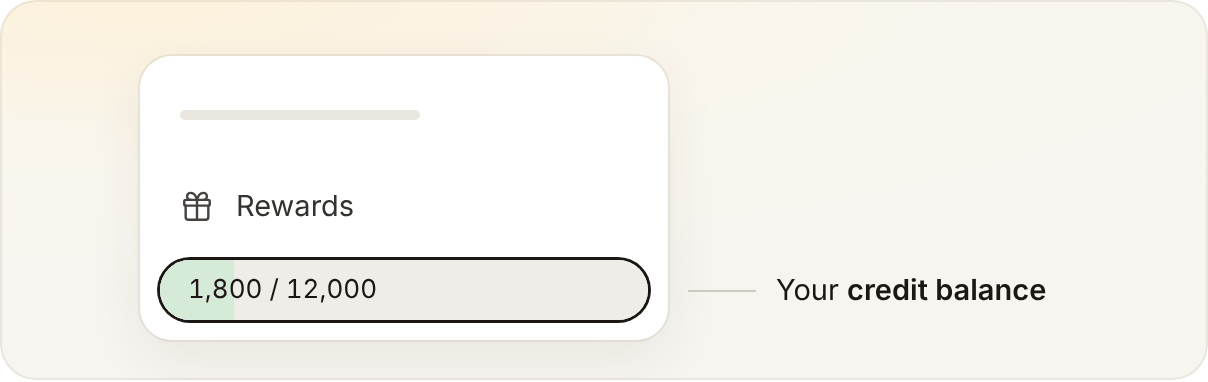
Owners and admins can see the workspace breakdown under Settings → Billing. If your settings sidebar has a separate Usage item, open Settings → Usage for the breakdown.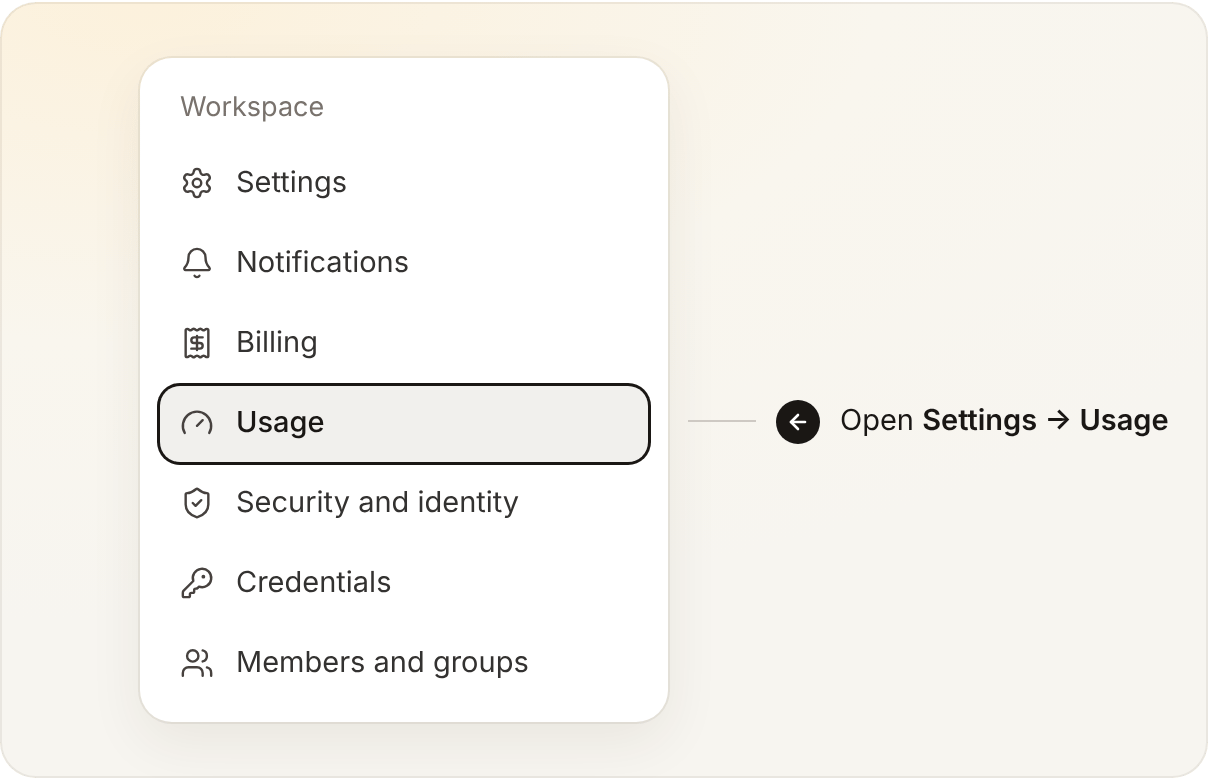
Spend caps per teammate
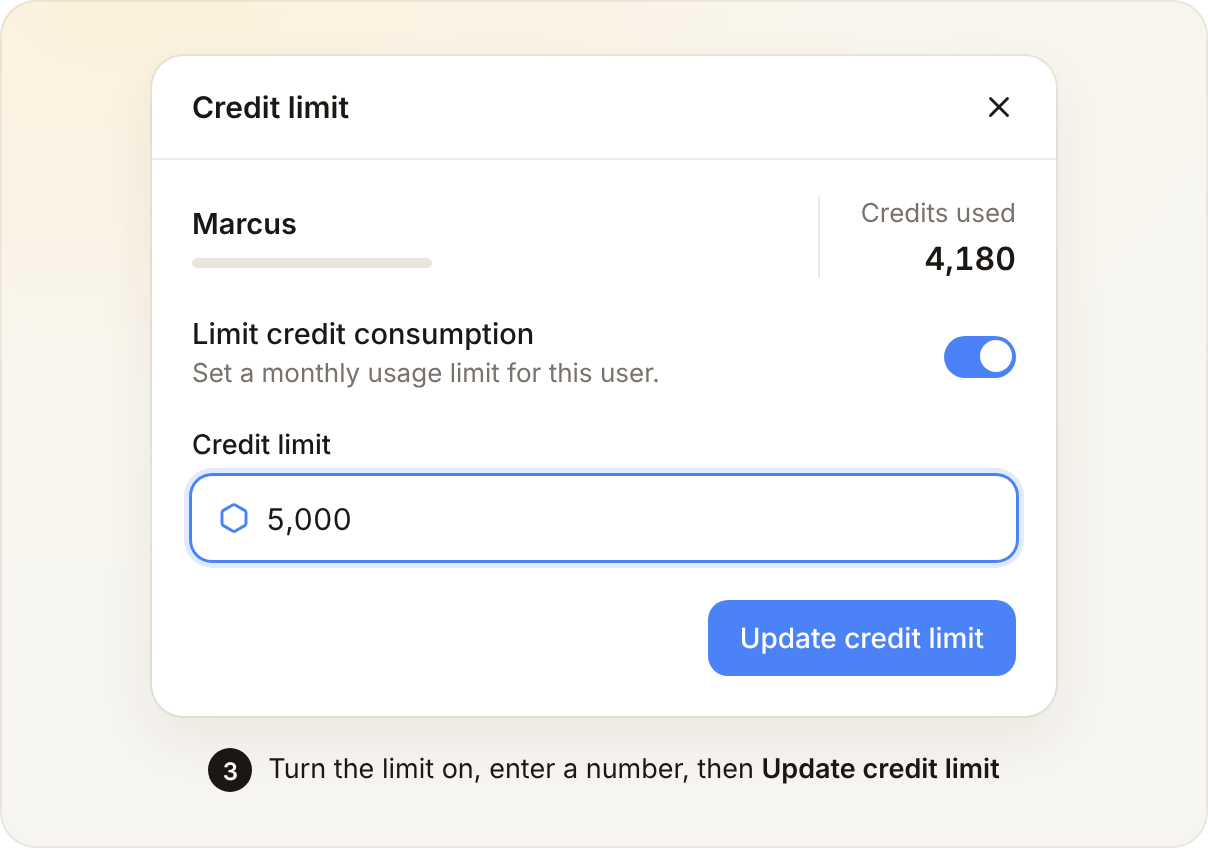
Admins can set a monthly credit cap for each teammate. In Settings → Members and groups, open the ⋯ menu on a member’s row and choose Edit credit limit.
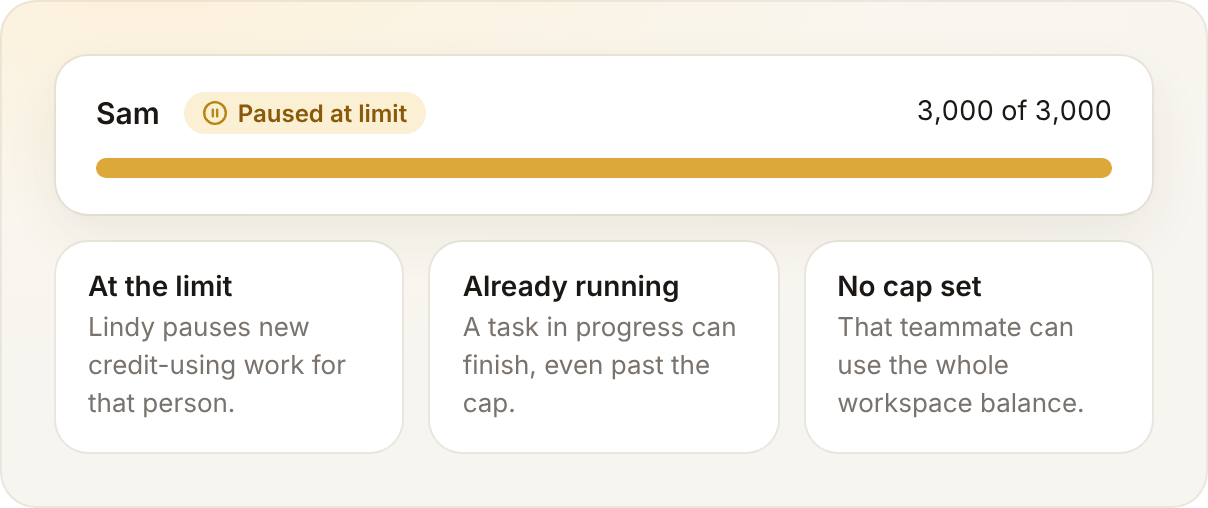
- At the limit, Lindy pauses new credit-using actions for that person.
- A task already running can finish past the cap. For example, someone who has used 90 of a 100-credit cap can finish a 50-credit task. Their usage reaches 140, and they cannot start another credit-using task until the cap is raised or the next cycle starts.
- With no cap, a teammate can use the whole workspace balance.
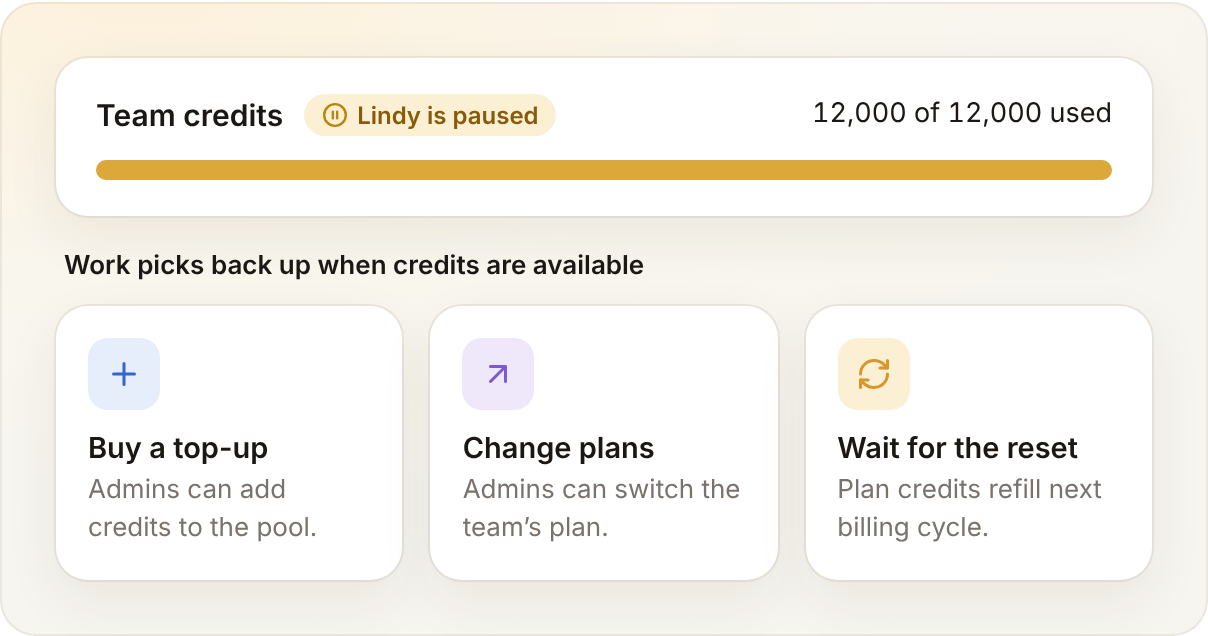
What Happens When Your Team Hits the Limit?
Some billing interruptions require an updated payment method or a plan change. Eligible runs can resume after billing is fixed. If a run expires, check what it already completed before rerunning it.
Usage Warning: Why Am I Seeing This?
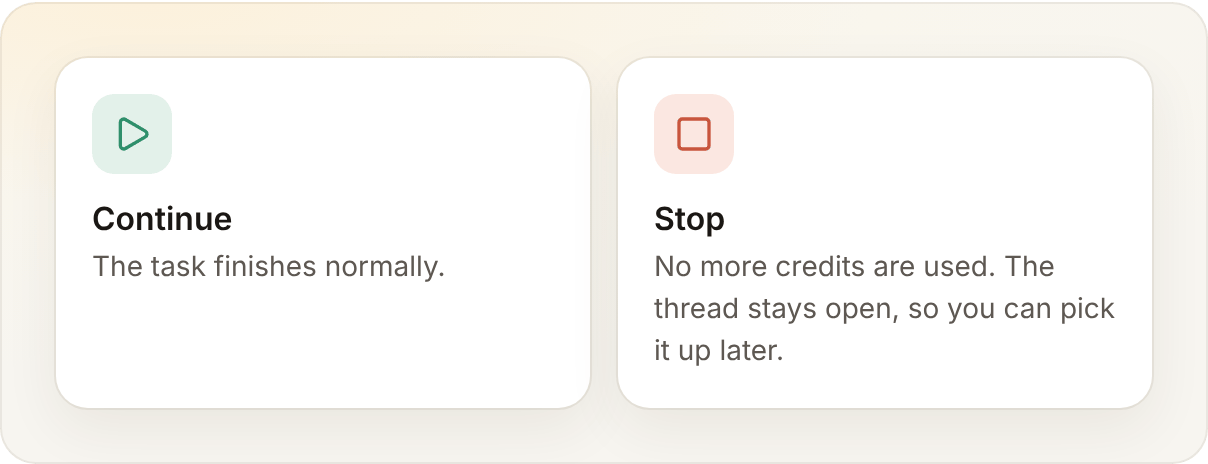
When spending checks are enabled for your workspace, Lindy can pause a task that’s using more credits than usual. If you asked in Slack, look for the prompt in the channel thread or DM where you delegated it.- Select Continue to let Lindy finish the task.
- Select Stop to end work on that run. Credits for work already done can still appear in usage.
What if we need more before the pool resets?
What if we need more before the pool resets?
Admins have two options:
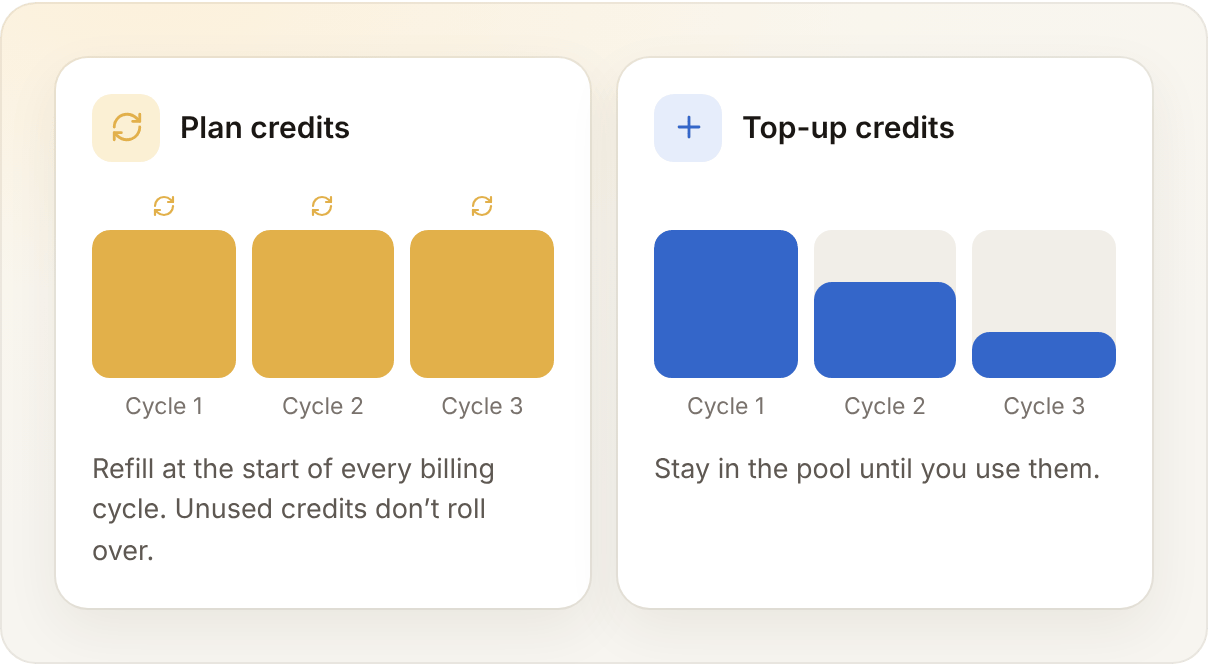
- Buy a top-up: extra workspace credits, with current pricing shown in Settings → Billing. Purchased top-up credits remain available until you use them.
- Change the plan: review the available plans in Settings → Billing and choose one that fits your team’s usage.
Does adding a teammate add credits?
Does adding a teammate add credits?
Yes. Credits belong to the workspace, not to each person, and every seat adds its tier’s allotment to the pool. See Lindy Teammate Billing.
Can I try Lindy for free?
Can I try Lindy for free?
New users can start with free credits, no credit card required. The free credits last 7 days.
Credit Optimization
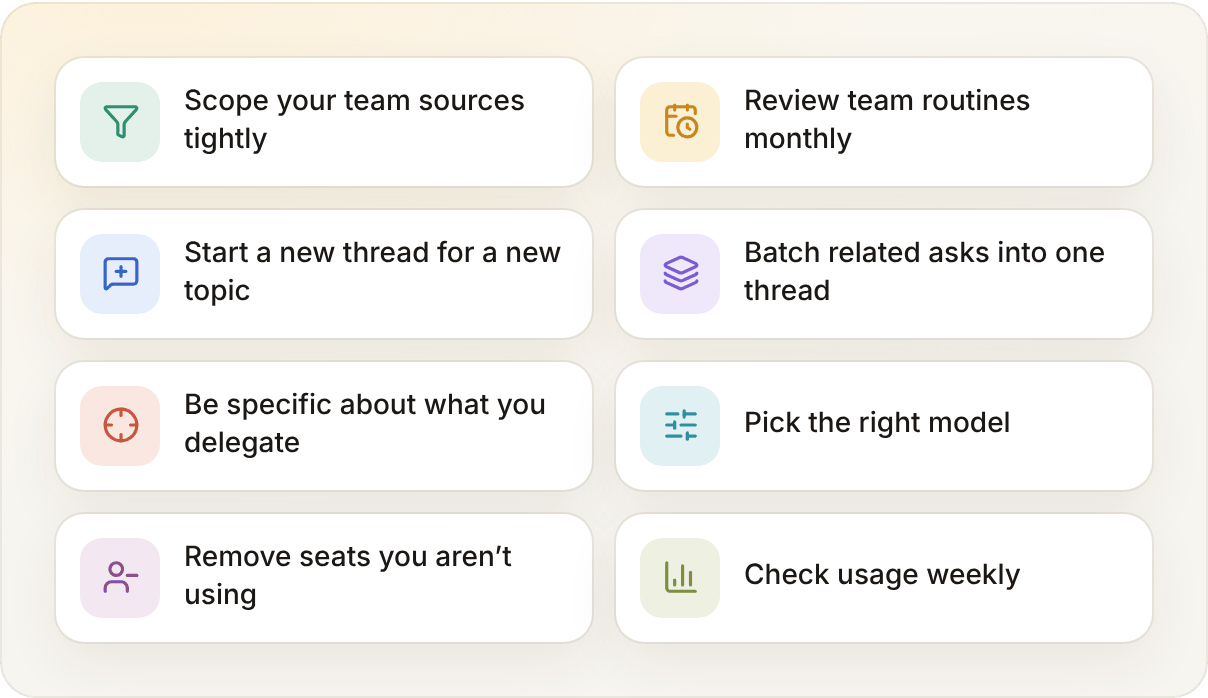
Try these ways to make your team’s credits go further.Scope your team sources tightly
Scope your team sources tightly
The shared Lindy searches everything you’ve approved. Point it at the channels and Drive folders that actually hold your team’s answers, not at the whole workspace.Open Settings → Lindy Teammate → Team sources and prune anything stale. A narrower set of sources is cheaper to search and gives better answers, so this is the rare lever that improves quality and cost at once.
Review team routines monthly
Review team routines monthly
Team routines run on their own schedule whether or not anyone reads the result, and a workspace-wide routine spends for the whole team every time it fires. They’re the easiest thing to set up and forget.Open the Routines page from the left sidebar and review both the Team and Personal tabs once a month. Flipping a routine off stops it without removing it, so you can turn it back on whenever you want. See Routines.
Start a new thread for a new topic
Start a new thread for a new topic
Every message in a thread re-reads everything above it, so a long-running thread gets more expensive with each turn. This matters more in a busy channel than in a DM, because the whole team keeps adding to it.Starting a fresh thread for an unrelated topic keeps every conversation lean. You lose nothing: what Lindy knows from your team’s sources carries across every thread.
Be specific about what you delegate
Be specific about what you delegate
Deep research is the row in the tables above whose cost genuinely varies, and vagueness is usually the reason. A precise brief tells Lindy when it’s done; an open-ended one doesn’t.
- Costs more: “@Lindy research Acme.”
- Costs less: “@Lindy give me five bullets on Acme’s funding history and their last two product launches.”
Pick the right model
Pick the right model
Advanced models earn their cost on hard reasoning and analysis. Routine work like summarizing, drafting, and lookups runs well on a cheaper one.Switch the model from the dropdown below the taskbar, then select Set as default to apply it to new conversations.
Remove seats you aren't using
Remove seats you aren't using
When someone leaves the team, manage their seat in Settings → Members and groups. Review the workspace subscription in Settings → Billing.
Check usage weekly
Check usage weekly
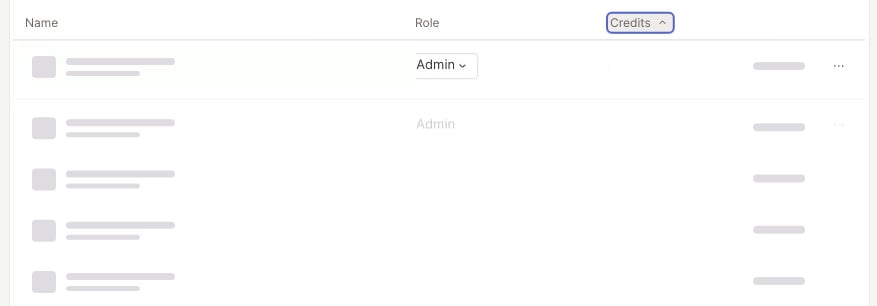
Check the workspace usage breakdown each week. Sort Settings → Members and groups by Credits to see which teammates are using the most.
Relevant Docs
Lindy Teammate Billing
Seats, trials, top-ups, and your shared credit pool
Set up Lindy
Get Lindy into your team’s Slack and connect your tools