

Before you start
Connect your Google Calendar or Outlook Calendar in Integrations, with permission for Lindy to create events. Booking links use your own connected calendar. If you have several calendars connected, you can choose which one a link books on.Create and share a link
1
Open Booking links
Open Meetings → Booking links. Use the copy button next to a suggested type, such as Quick chat or Deep dive, to create and copy that link. Select Create custom to choose your own details first.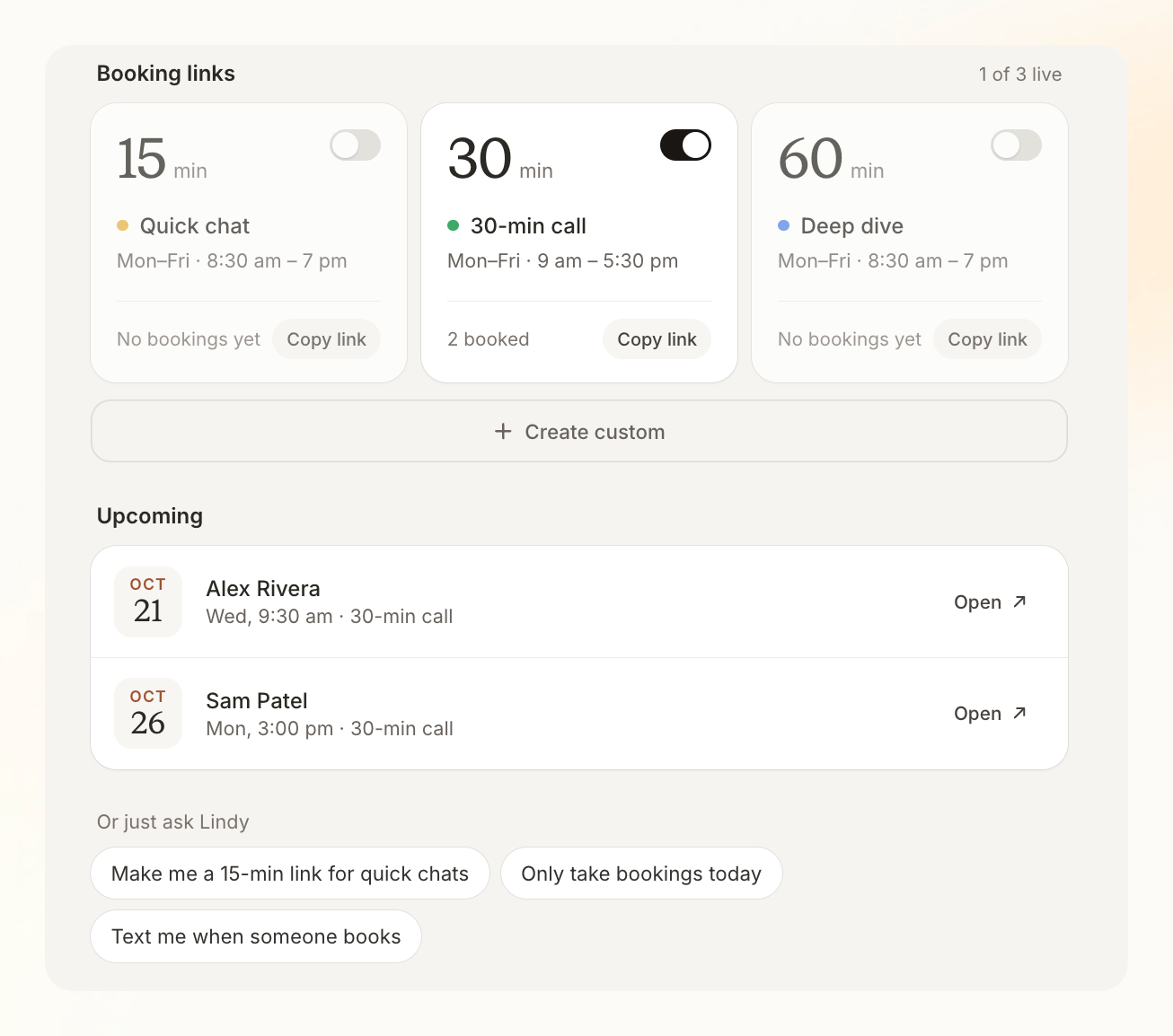
2
Set up the meeting
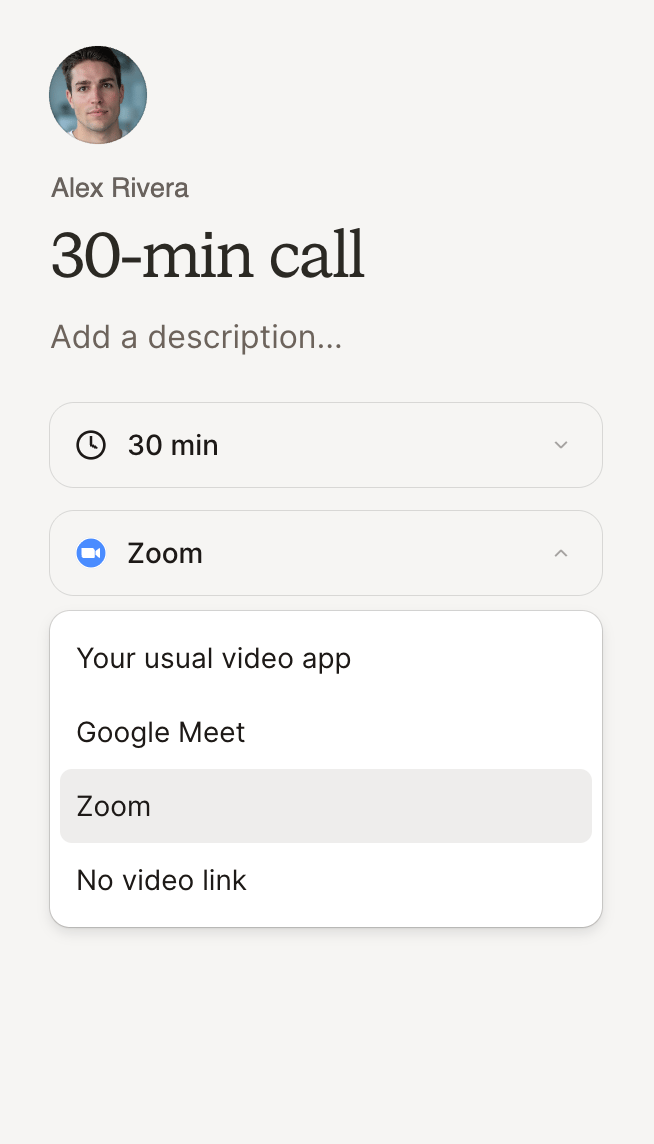
For a custom link, enter a Title and Description. Use Length to set the duration and Where to choose how you’ll meet. Links that book on Outlook use Microsoft Teams by default, or Zoom if you choose it.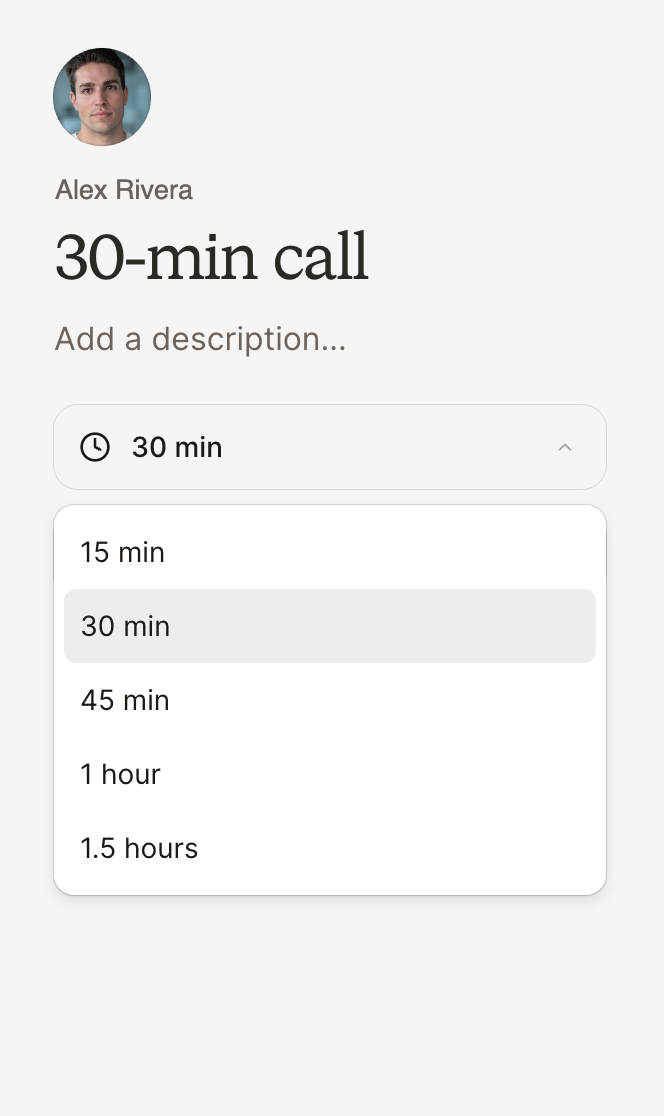
- Meeting length
- Video app
3
Copy and share
Use the copy button beside the meeting type. Paste the link into a message, your email signature, or your website. Open the link yourself to check what guests will see.
Adjust availability and settings
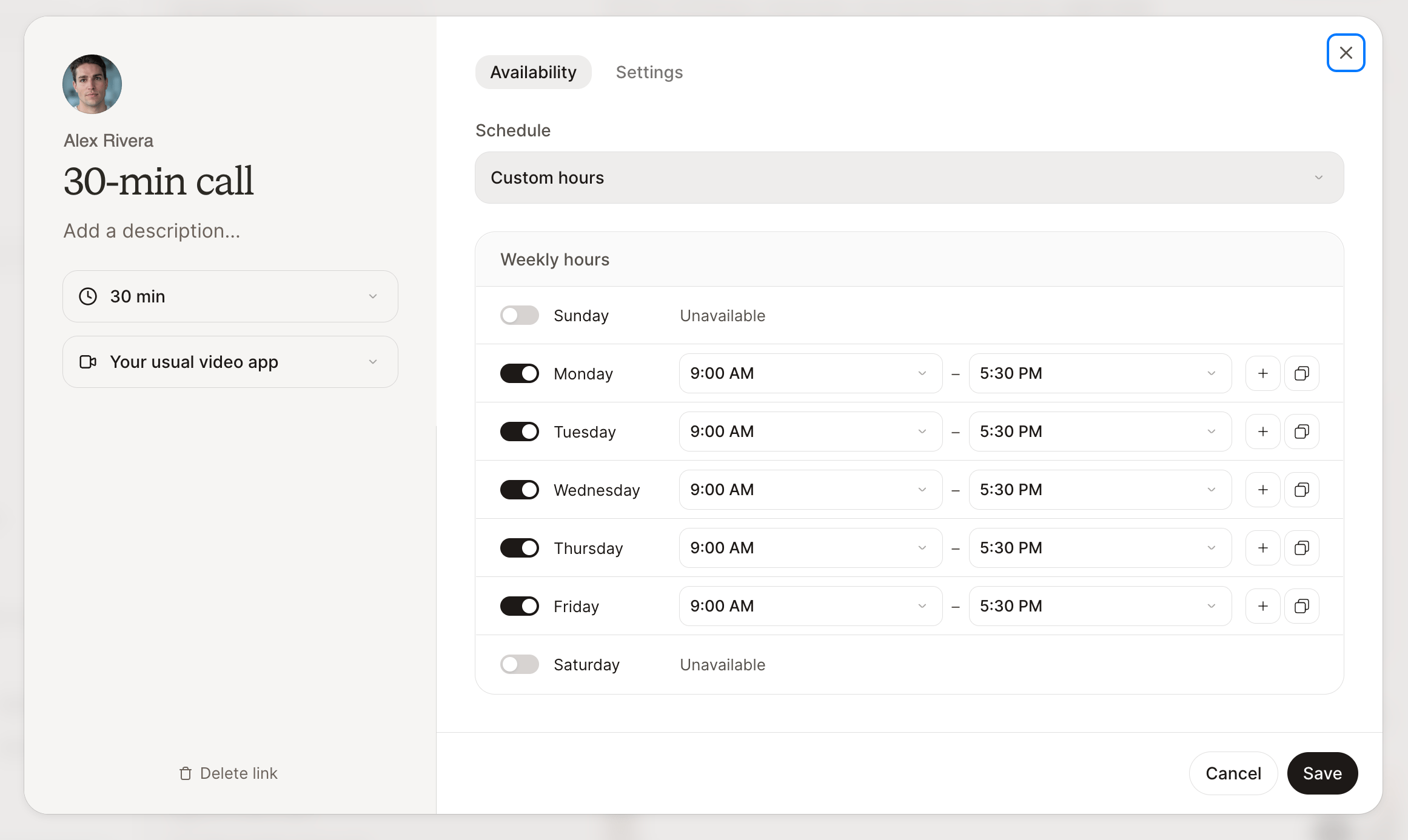
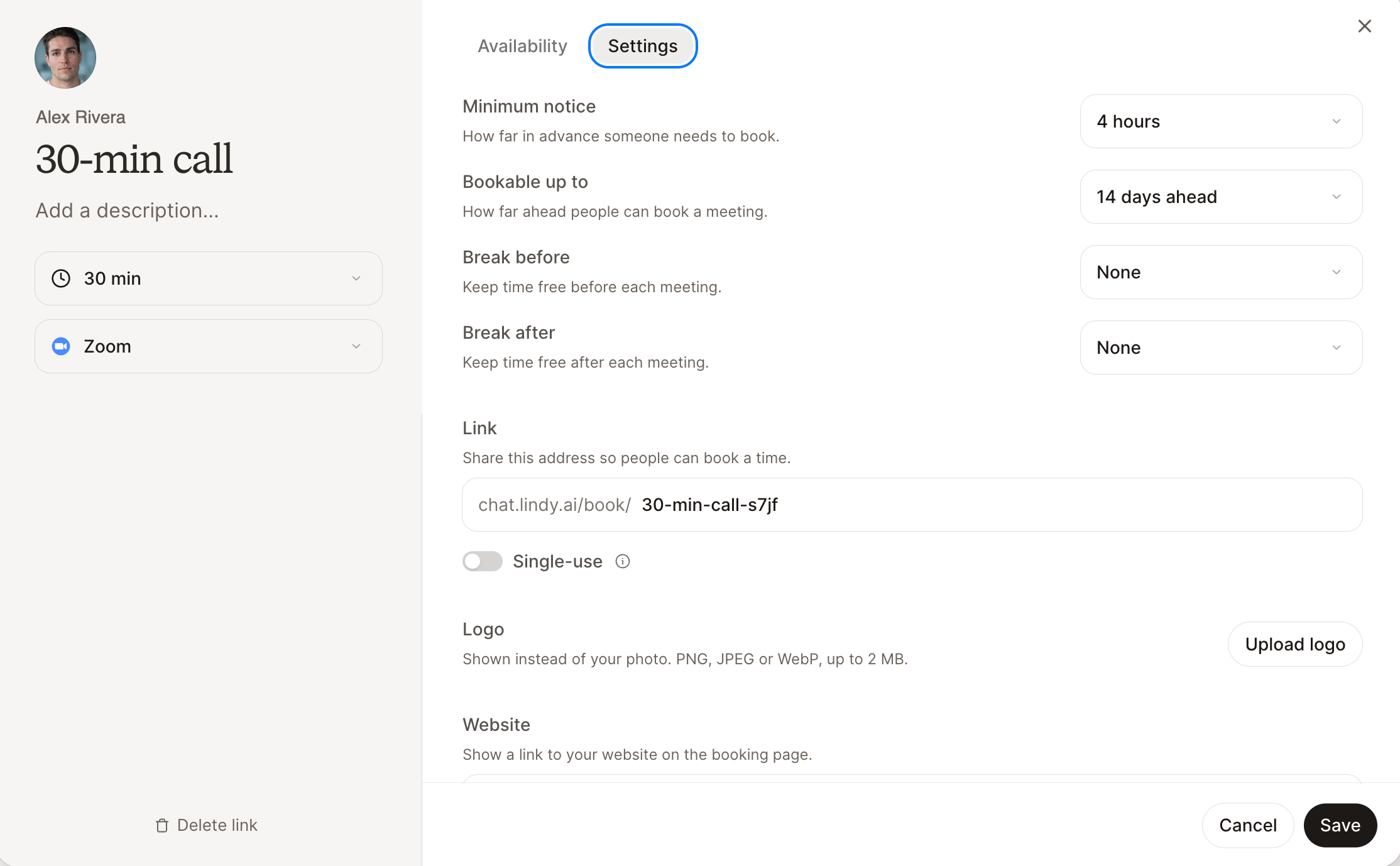
Select a booking type to open its editor. Change the details, Availability, or Settings, then save.- Availability
- Settings
What guests see
Guests choose a date and time, then enter their name and email, with an optional note. They don’t need a Lindy account. Times display in their selected time zone, and the booking creates a calendar event. Their confirmation includes a link to reschedule or cancel. Lindy checks availability again before confirming a new time.Pause or limit a link
Turn off the switch on a meeting card to stop new bookings. Existing meetings stay booked. Turn it back on when you’re ready. For a link that should accept one booking, enable Single-use in Settings. It turns off after the first booking.Ask Lindy in chat
You can also create or update links by asking:Create a 30-minute Intro call booking link for Tuesday and Thursday afternoons.
Make my Intro call link single-use.