

Find Integrations
Open Integrations in the Lindy sidebar. If you don’t see it, expand Customize in the sidebar and select Integrations. You can also go to Settings → Integrations.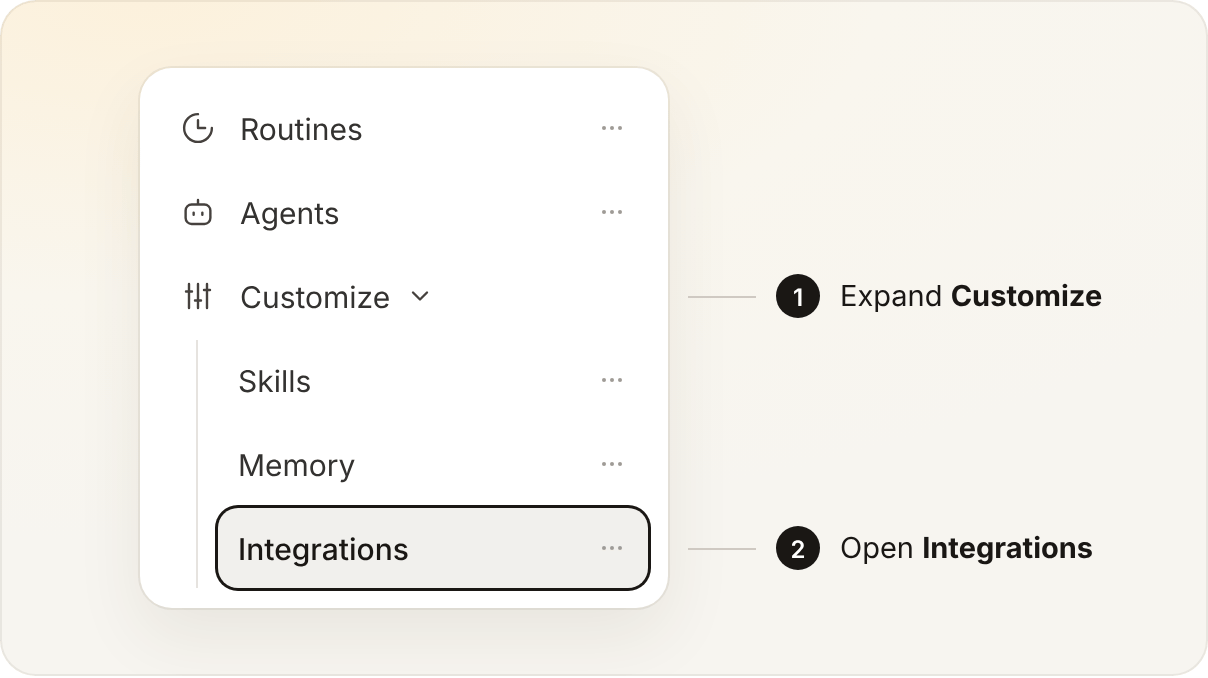
See it in the full app
See it in the full app
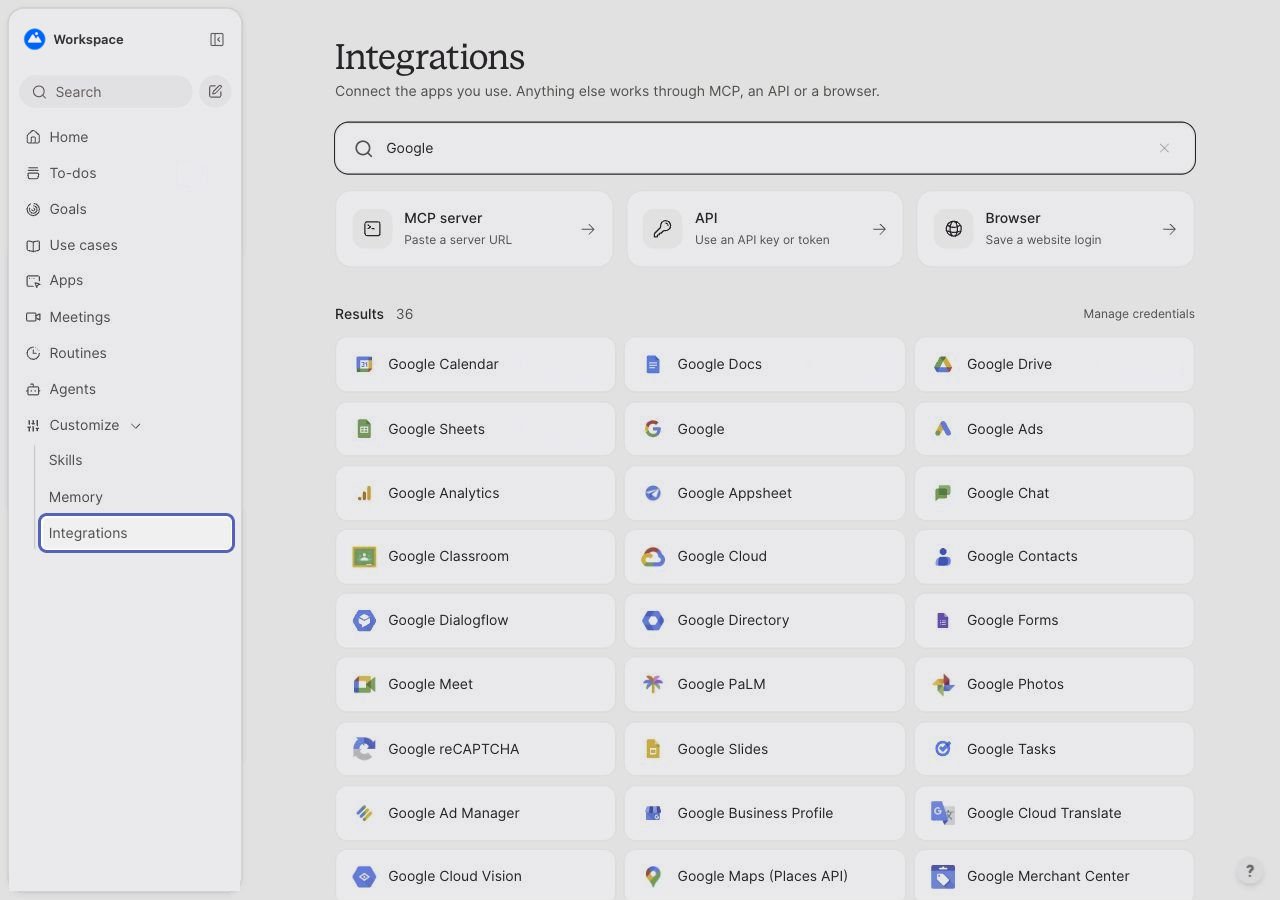
Connect an app
Use Search apps to find a tool by name, or start with Popular to see commonly used tools and what’s already connected. Lindy supports 3,000+ integrations. You can also browse the full catalog.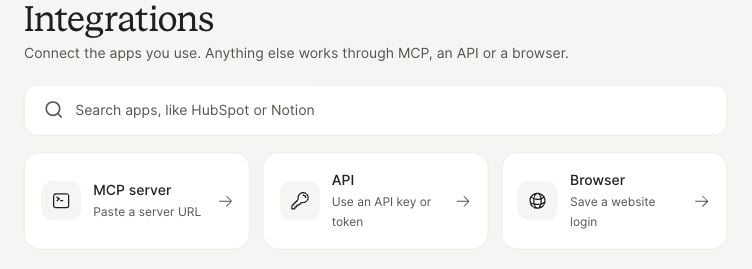
When a tool isn’t in the list
To use Lindy from Claude, ChatGPT, or another AI app, open Settings → AI apps. See Use Lindy from other AI apps.
Personal and team connections
A personal connection is private to you. Your Lindy uses it for your own work, your DMs, and the web app.
An owner or admin can share one of their personal connections with the whole workspace. From then on, everyone’s Lindy reads that tool as that account and acts with its permissions. Members can see team connections but can’t change them.
When Lindy asks for approval
Whether Lindy asks depends on the action, where the job runs, and any saved approval settings. Some actions can require approval in a personal conversation or during a routine. If you want to review a result yourself, ask Lindy to leave it as a draft. For a routine, start with a dry run.Guardrails
In shared Slack threads, integration guardrails control actions that make a change, such as updating a CRM record. Use these settings to decide when Lindy should ask first.
The shared Slack settings apply to writes. Read-only actions like looking up a record can run with the access already granted to Lindy.